Auto-Create Enriched Salesforce Contacts: A Google Sheets Automation Workflow
Build a no-code Workato recipe that watches a Google Sheet for new leads, enriches each row via Lusha using whatever identifiers you have, then creates a Contact in Salesforce with the enriched fields mapped in automatically.
Why this works
Sheets are where leads often land first: webinar lists, partner uploads, form exports, event scans. The problem is what happens next—someone has to clean, enrich, and re-enter the data into Salesforce.
This play removes the handoff. A row becomes the trigger, Lusha fills the gaps, and Salesforce gets a usable record without anyone doing the research step.
What you get
A simple pipeline that:
- Pulls new rows from Google Sheets
- Enriches contacts through Lusha (email, phone, LinkedIn URL, title, company context)
- Creates Salesforce Contacts automatically
- Keeps Salesforce cleaner and faster to work from
Google Sheets structure
Required: at least one identifier (any of these works)
- First name + last name + company name
- First name + last name + company domain
- LinkedIn URL
Tip: Email or LinkedIn URL usually gives the cleanest match. Name + company works when that’s all you have.
How to set it up
Set up the Google Sheets trigger in Workato
- In Workato, choose Google Sheets as your source
- In Setup, select:
- the spreadsheet
- the specific sheet/tab
- the spreadsheet
- Confirm the columns include at least one of the supported identifier combos
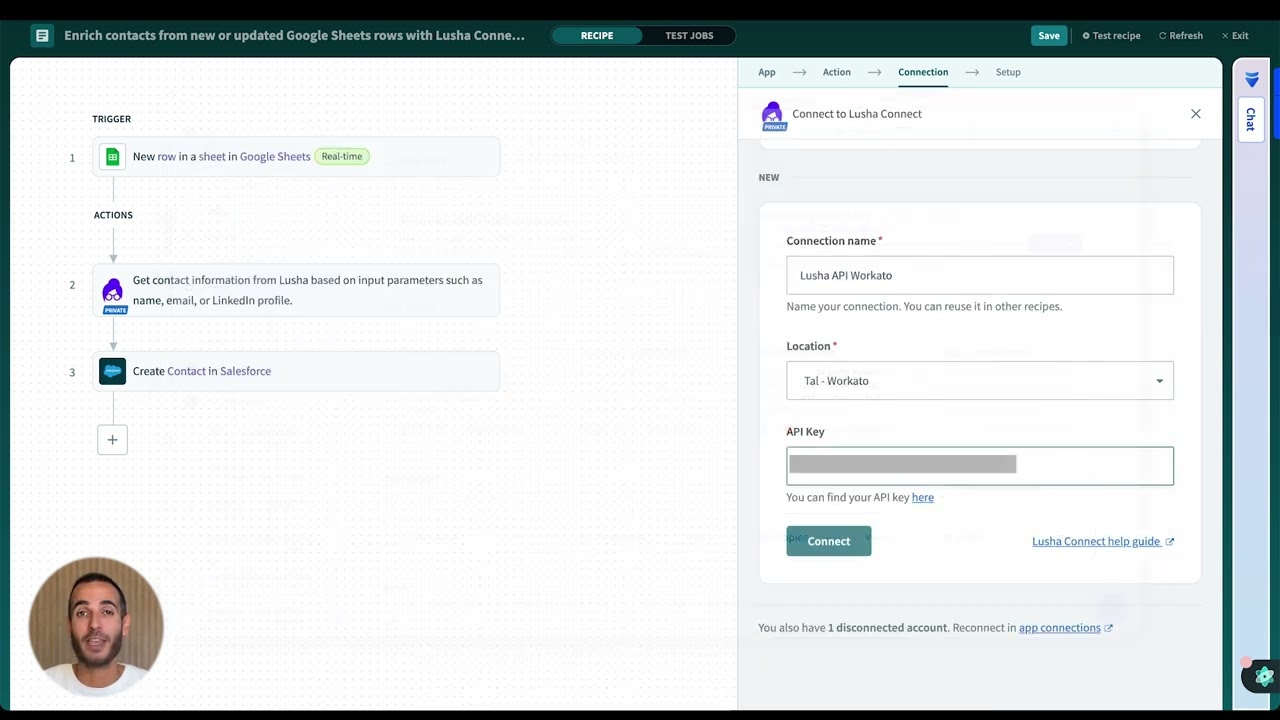
Connect Lusha and map the input fields
- Add the Lusha step
- Under Connection, click Add New Connection
- Paste your Lusha API key (from your Lusha dashboard → API page)
- In Setup, map your sheet columns into Lusha’s optional fields:
- email / LinkedIn URL, or
- first name / last name / company name (or domain)
- email / LinkedIn URL, or
Create the Salesforce record
- Add Salesforce as the destination step
- Action: Create Record
- Connect your Salesforce account
- In Setup:
- Choose Contact as the object
- Map Lusha outputs into Salesforce fields (name, title, phone, email, company/account fields as needed)
- Choose Contact as the object
Test the loop
- Add a test row in the sheet
- Run the recipe once
- Confirm:
- Lusha returns data as expected
- Salesforce Contact is created with the right mappings
What to do next
- Add dedupe logic (search Salesforce first; update if contact exists)
- Add a quality gate (only create a Contact if key fields are present)
- Add routing (assign owner/territory based on domain, region, or segment)
- Add a Slack alert for “high-fit” rows
The goal: spreadsheet leads become Salesforce-ready contacts automatically—fast, consistent, and clean.
No FAQ items available at this time.
Ready to build this?
Get started with Lusha and set up this play in minutes.