Google Sheets contact enrichment engine
Build a one-click enrichment workflow in Google Sheets using a ready-made Apps Script from Lusha’s API Hub. Add basic lead info (name + company/domain, LinkedIn, or email), run enrichment, and the sheet fills in verified emails, phones, LinkedIn URLs, and company context automatically.
Why this works
Manual lead qualification breaks in the same place every time: research. Copy a name, open LinkedIn, guess an email format, check company size, repeat. It’s slow, inconsistent, and it delays follow-up when leads are warm.
This play standardizes the process. A sheet row becomes the trigger, and Lusha becomes the data layer, so every lead gets enriched the same way, every time.
What you get
A spreadsheet workflow that can:
- Enrich inbound leads with verified email, phone number, and LinkedIn URL
- Validate company context (industry, size, technologies)
- Make leads scoring-ready (title, domain, seniority, firmographics) so segmentation and routing can happen instantly
You’re not just cleaning data—you’re qualifying leads at scale with zero manual effort.
Google Sheets structure
Typical headers (the template includes examples)
- First Name
- Last Name
- Company Name
- Domain
- Email
- LinkedIn URL
Supported input combinations (use what you have)
- First name + last name + company
- First name + last name + domain
- LinkedIn URL
- Email
Tip: The more specific the input (domain or LinkedIn), the cleaner the match.
How to set it up
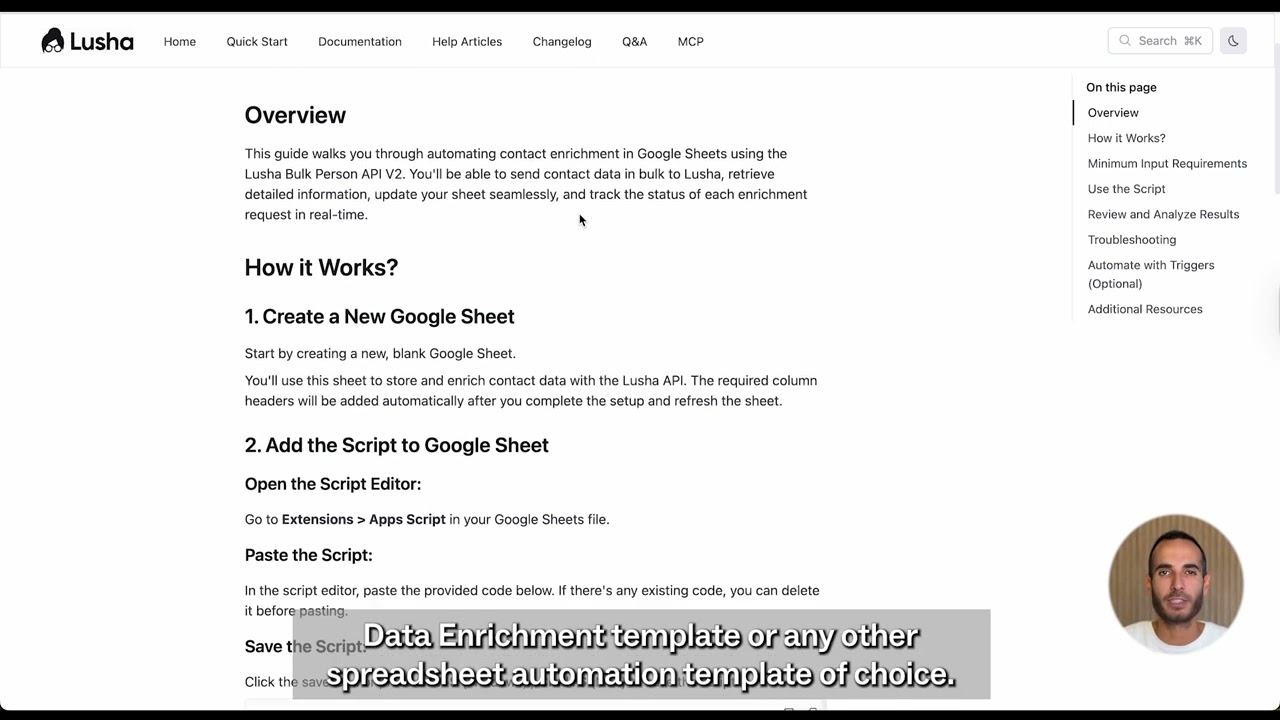
Add the Lusha Apps Script
- Open a new or existing Google Sheet
- Go to Extensions → Apps Script
- Delete any existing code
- In Lusha API Hub (inside your Lusha dashboard), search “Automate Contact Data Enrichment” (or another Sheets template)
- Copy the full script and paste it into Apps Script
Store your API key in Script Properties
- In Apps Script, go to Project Settings → Script Properties
- Click Add Script Property
- Property name: api_key
- Value: paste your Lusha API key
- Click Save, return to the sheet, and refresh
Run the enrichment flow
After refresh, you’ll see a new top menu: Lusha Enrichment, with options like:
- Enrich All Contacts
- Enrich From Specific Row
Add new rows (from forms, webinars, campaigns, or exports), then run the action you want.
Check your results
- Enter a test lead (first name, last name, company/domain)
- Run Lusha Enrichment → Enrich All Contacts
- The script fills in missing fields and shows a summary (contacts enriched + credits used)
What to do next
- Export enriched contacts to CSV
- Sync to your CRM with Sheets add-ons, Zapier, or Make
- Use the enriched fields for scoring, segmentation, and prioritization
The goal: every row becomes a qualified lead record—without the research tax.
No FAQ items available at this time.
Ready to build this?
Get started with Lusha and set up this play in minutes.