
This Workato recipe watches a Google Sheet for new leads, enriches each row with Lusha, and creates or updates a Salesforce contact with the data already filled in. You can start with whatever information you have, from a full name and company to just an email or LinkedIn URL.
Auto-create enriched Salesforce contacts from Google Sheets
Why send Google Sheets leads to Salesforce automatically?
A lot of leads start in a spreadsheet: webinar signups, event scans, partner lists, and form exports. Getting them into Salesforce usually means someone has to clean the data, research each person, and enter the records by hand.
This workflow removes that step. A new row triggers the recipe, Lusha fills in the missing details, and Salesforce gets a complete contact that reps can work right away.
What this workflow does
- Picks up new rows added to your Google Sheet in real time
- Enriches each lead with Lusha, adding email, phone, LinkedIn URL, job title, and company details
- Creates or updates the contact in Salesforce (upsert), so existing contacts aren’t duplicated
- Saves your team from manual research and data entry
What your sheet needs
Each row needs at least one of these:
- First name, last name, and company name
- First name, last name, and company domain
- Email address
- LinkedIn URL
Tip: An email or LinkedIn URL usually gives the most accurate match. Use name and company when that’s all you have.
How to set it up
01
Start from the Workato template
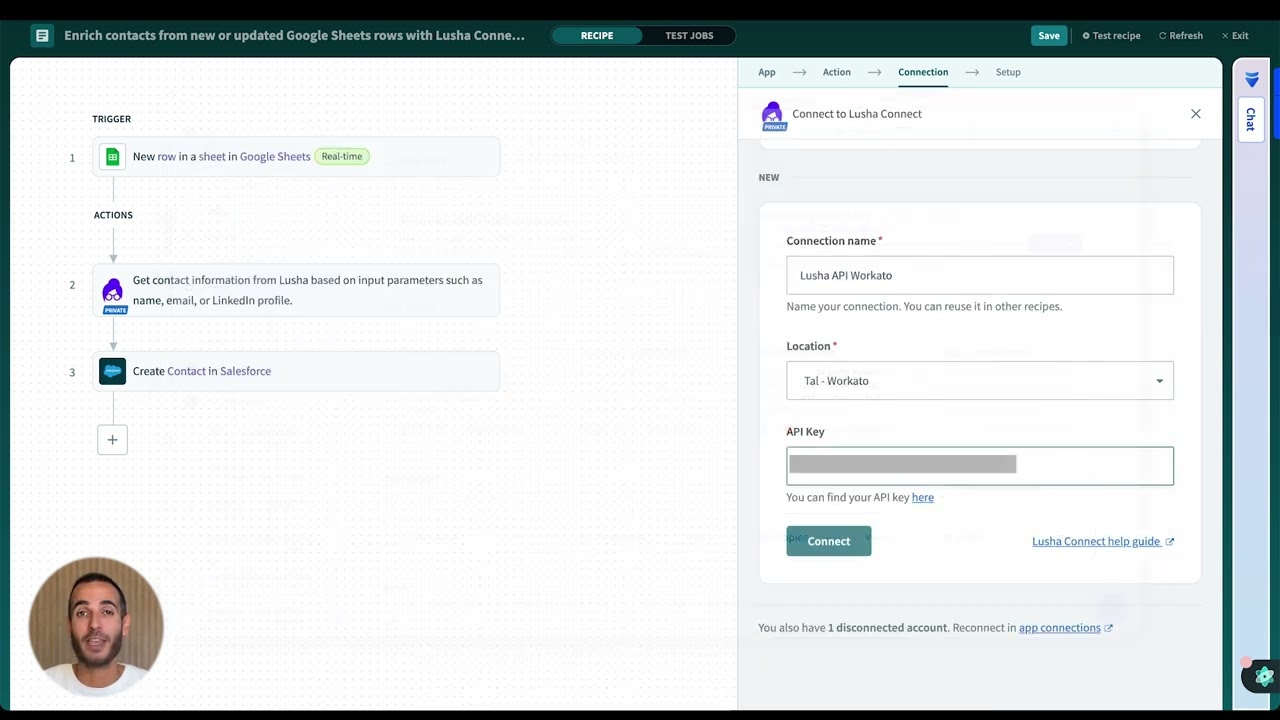
Copy the recipe from the template into your Workato workspace. It has three steps: New row in a sheet in Google Sheets, the Lusha Get contact information action, and Upsert Contacts in batches in Salesforce.

02
Set up the Google Sheets trigger
The New row in a sheet in Google Sheets trigger runs in real time whenever a row is added.
- Connect your Google Sheets account
- Select the spreadsheet and the specific sheet or tab
- Confirm the columns include at least one of the supported identifier combinations (see “What your sheet needs”)
03
Connect Lusha and map the input fields
In the Lusha step (Get contact information from Lusha):
- Under Connection, click Add New Connection and paste your Lusha API key (from your Lusha dashboard → API page)
- In Setup, map your sheet columns into Lusha’s input fields: email or LinkedIn URL, or first name, last name, and company name or domain
04
Upsert the contacts in Salesforce
The Upsert Contacts in batches in Salesforce action creates new contacts and updates existing ones, so the same person isn’t added twice.
- Connect your Salesforce account
- Choose the field Salesforce uses to match existing contacts, for example an external ID field such as email
- Map the Lusha outputs to Salesforce fields (name, title, phone, email, and company or account fields as needed)
05
Test the recipe
Add a test row to the sheet and run the recipe once. Confirm that:
- Lusha returns the expected data
- The Salesforce contact is created with the right mappings
- Adding a row for a person who already exists updates that contact instead of creating a new one
What to do next
- Add a quality gate (only create a Contact if key fields are present)
- Add routing (assign owner/territory based on domain, region, or segment)
- Add a Slack alert for “high-fit” rows
The goal: Spreadsheet leads become clean, Salesforce-ready contacts automatically.
FAQ
Use this Workato recipe. It watches your sheet for new rows, enriches each lead with Lusha, and creates or updates the contact in Salesforce.
No. The template runs in Workato, which is no-code. You connect your accounts and map your columns to fields.
Verified email, phone number, LinkedIn URL, job title, and company details.
One identifier per row: an email, a LinkedIn URL, or a full name with a company name or domain.
No. The recipe upserts contacts in Salesforce, so when a contact already exists, it’s updated instead of created again.
Ready to run this?
One data connection. Works in Claude, ChatGPT, your CRM, or any agent you build.


