
This n8n workflow turns a short form fill into a qualified lead. It takes just a name and business email, enriches the person and company with Lusha, including signals, and checks ICP fit. Qualified leads go to a Google Sheet, along with the decision-makers Sales should actually contact.
Auto-qualify form fills workflow
Why qualify form fills automatically?
Most form fills arrive incomplete: a name, an email, maybe a company. Everything after that becomes research, which slows routing, makes qualification inconsistent, and leaves reps guessing.
This workflow separates capture from qualification. Marketing keeps the form short, the workflow enriches and checks each lead in the background, and Sales gets a ready-to-work list with the context it needs.
What this workflow does
- Starts from a form with only full name and business email
- Enriches the person with title, seniority, phone, and social links
- Enriches the company with size, industry, revenue, funding, tech stack, and location
- Adds signals, like hiring trends, job changes, and growth indicators
- Checks each lead against your ICP and gives a fit reason and confidence score
- Finds the decision-makers at the company, even if the person who filled out the form is junior
- Drafts a personalized email for each decision-maker with OpenAI (ChatGPT)
- Writes qualified companies, decision-makers, and email drafts to a Google Sheet
Example ICP rules
- 51–1,000 employees
- SaaS, AI, or IT services
- Recently raised funding or actively growing
- Using complementary tools
- Based in your target regions
How to set it up
01
Import the template into n8n
Download the template and import it into n8n.
02
Set up the form trigger
The On form submission node creates a form with two fields: Full Name and Email. That’s all the workflow needs.
03
Enrich the contact and company with Lusha
The Get Contact Details node sends the email to Lusha. The Get Company Details node uses the company domain from that response. Use the Lusha API V3 endpoints:
- Contact:
POST https://api.lusha.com/v3/contacts/search-and-enrich - Company:
POST https://api.lusha.com/v3/companies/search-and-enrich
Add your Lusha API key in the api_key header of each Lusha node.
04
Check ICP fit with AI
The AI Agent node uses an OpenAI (ChatGPT) model to compare the company with your ICP rules. It returns a status, a fit reason, and a confidence score. Connect your OpenAI account and edit the prompt with your own ICP rules. The If node continues only when the status is “Qualified”.
05
Add qualified companies to Google Sheets
The Add Company to CRM node adds each qualified company to your Google Sheet. Connect your Google account and choose the sheet.
06
Find and enrich the decision-makers
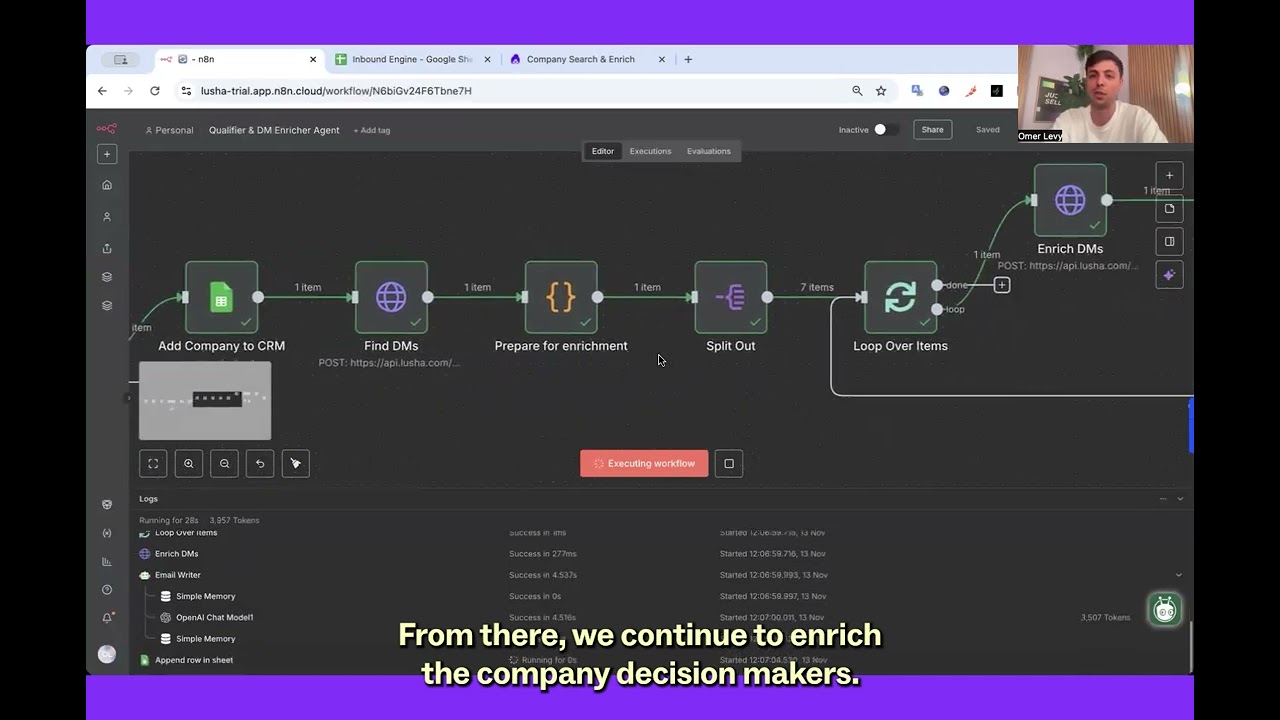
The Find DMs node searches for decision-makers at the company with POST https://api.lusha.com/v3/contacts/prospecting. The Enrich DMs node enriches each one with POST https://api.lusha.com/v3/contacts/enrich. Edit the job titles and seniority in the search to match your buyers.
07
Draft emails and write them to the sheet
The Email Writer node drafts a personalized email for each decision-maker with OpenAI (ChatGPT). The Append row in sheet node adds each contact and their email draft to your Google Sheet.
08
Test the workflow
Submit a test form with a business email from a company that fits your ICP. Check that the company, the decision-makers, and the email drafts appear in your sheet.
What to do next
- Push the same enriched outputs into HubSpot/Salesforce (or keep Sheets as the daily queue).
- Turn “confidence score + signals” into routing rules (who gets immediate outreach vs. nurture).
FAQ
Use this n8n workflow. It enriches each form fill with Lusha, checks it against your ICP, and writes qualified leads to a Google Sheet.
Only a full name and a business email.
The workflow finds and enriches the decision-makers at the company, like the VP of Sales, Director of RevOps, or CRO.
Their data is saved, but they aren’t sent to Sales.
Yes. You can push the same enriched data to HubSpot or Salesforce.
Ready to run this?
One data connection. Works in Claude, ChatGPT, your CRM, or any agent you build.


