
This template adds one-click enrichment to Google Sheets, using a ready-made Apps Script from the Lusha API Hub. Add basic lead details, like a name and company, an email, or a LinkedIn URL, and the sheet fills in verified emails, phone numbers, LinkedIn URLs, and company details.
Google Sheets contact enrichment engine
Why enrich contacts in Google Sheets?
Researching leads by hand is slow and inconsistent. You copy a name, open LinkedIn, guess the email format, look up the company size, and do it all again for the next row. Meanwhile, warm leads wait.
This template makes enrichment the same for every lead. Add a row, run the script, and Lusha fills in the rest.
What this workflow does
- Enriches leads with verified emails, phone numbers, and LinkedIn URLs
- Adds company details, like industry, size, and technologies
- Fills in title, seniority, and domain, so leads are ready for scoring and routing
- Lets you enrich the whole sheet or start from a specific row
- Shows a summary of how many contacts were enriched and how many credits were used
What your sheet needs
Typical headers (the template includes examples):
First Name, Last Name, Company Name, Domain, Email, LinkedIn URL
Each row needs one of these:
- First name, last name, and company
- First name, last name, and domain
- LinkedIn URL
Tip: A domain or LinkedIn URL gives the most accurate match.
How to set it up
01
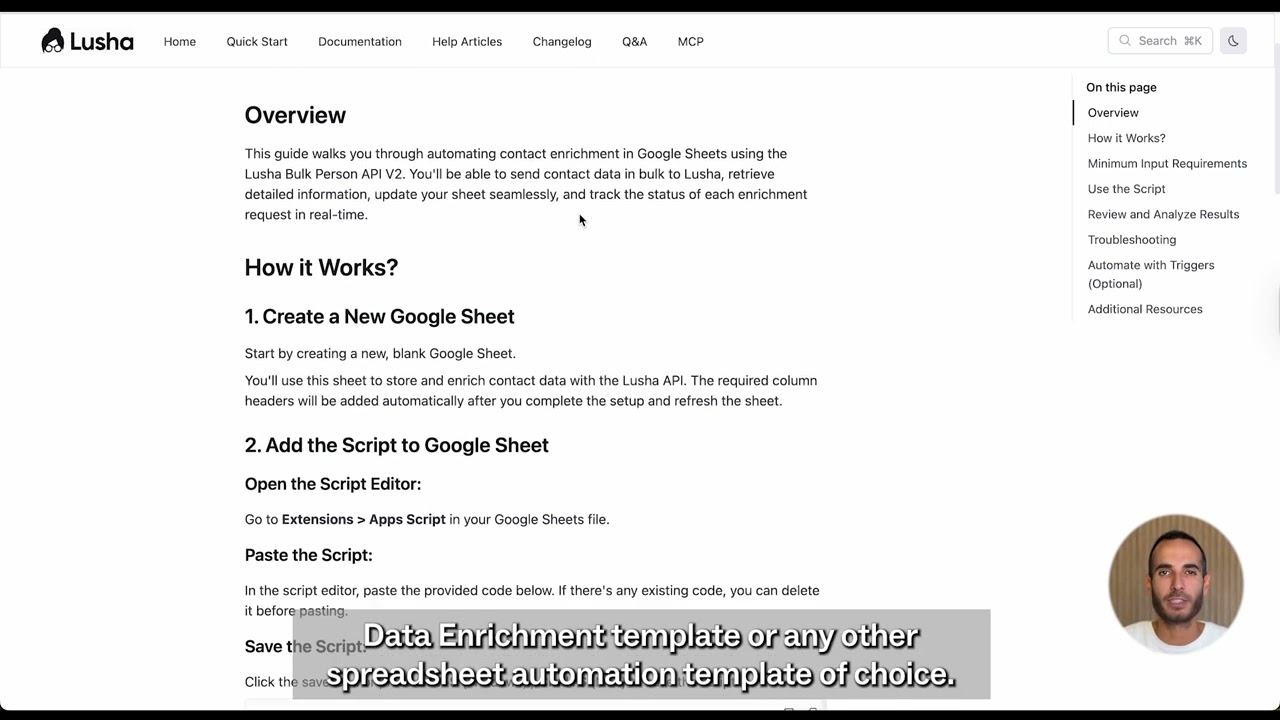
Add the Lusha Apps Script
- Open a new or existing Google Sheet
- Go to Extensions → Apps Script
- Delete any existing code
- In Lusha API Hub (inside your Lusha dashboard), search “Automate Contact Data Enrichment” (or another Sheets template)
- Copy the full script and paste it into Apps Script
02
Store your API key in Script Properties
- In Apps Script, go to Project Settings → Script Properties
- Click Add Script Property
- Property name: api_key
- Value: paste your Lusha API key
- Click Save, return to the sheet, and refresh
03
Run the enrichment flow
After refresh, you’ll see a new top menu: Lusha Enrichment, with options like:
- Enrich All Contacts
- Enrich From Specific Row
Add new rows (from forms, webinars, campaigns, or exports), then run the action you want.
04
Check your results
- Enter a test lead (first name, last name, company/domain)
- Run Lusha Enrichment → Enrich All Contacts
- The script fills in missing fields and shows a summary (contacts enriched + credits used)
What to do next
- Export enriched contacts to CSV
- Sync to your CRM with Sheets add-ons, Zapier, or Make
- Use the enriched fields for scoring, segmentation, and prioritization
The goal: Every row becomes a complete lead record, with no manual research.
FAQ
Add the Lusha Apps Script from the API Hub to your sheet, save your API key in Script Properties, and run “Enrich All Contacts” from the Lusha Enrichment menu.
No. You copy a ready-made script and paste it in. There’s no code to write.
In the Lusha API Hub, inside your Lusha dashboard. Search for “Automate Contact Data Enrichment.”
An email, a LinkedIn URL, or a full name with a company name or domain.
After each run, the script shows a summary of the contacts enriched and the credits used.
Ready to run this?
One data connection. Works in Claude, ChatGPT, your CRM, or any agent you build.


